Skip to content

Disclaimer. This is an information site only. We explain LibreOffice and similar office suites. We do not sell or distribute software, we are not affiliated with The Document Foundation, and we do not replace the developer’s official documentation.

A desk with a laptop, a printed report, and a notebook — a typical scene of working with office documents

Reference review · updated October 30, 2026

LibreOffice without the marketing haze: what the suite can do, where it falls short, and how to compare it

An independent look at the strengths, limits, version lines, and support terms next to similar programs. Installers and official download links are not published here.

What this suite is and who it fits

LibreOffice is a free office suite for documents, spreadsheets, presentations, drawings, formulas, and simple databases. The project grew out of OpenOffice.org and is developed by the community around The Document Foundation. It installs on Windows, macOS, and Linux. A cloud subscription is not required: files stay on disk, and the native format is the open ODF standard. For letters, reports, school work, and household accounting, that is usually enough.

A person checking a printed document against a word processor on a laptop
Writer covers everyday writing. Complex corporate templates should be tested on file copies, not on the only original.

The suite’s main strength is the license. You can install it at home, in a school, and in a small firm without paying per seat. Second is true offline work: a document does not depend on someone else’s server. Third is a full set of modules in one install: Writer, Calc, Impress, Draw, Math, and Base. Fourth is flexible PDF export. Fifth is open source: vulnerabilities are discussed in public, not only inside a vendor. For an editorial team or a bookkeeping desk, that means predictable rules instead of a hidden tariff.

The limits should be named plainly. Complex Word and Excel files with VBA macros, unusual pivot tables, or corporate fonts may open differently than they did for the author. LibreOffice macros are written in Basic, Python, and JavaScript, but that is not a copy of VBA. The interface is stricter than commercial suites, and the foundation does not run a vendor hotline: help comes through forums, documentation, and independent integrators. A large company needs that fact in its support policy, or downtime at quarter-end will cost more than the license savings.

Versions run on two tracks. Fresh is the newer line, with recent features. Still is the calmer line for people who need stability. Historically the suite moved through early 3.x and 4.x, mature 6.x and 7.x with better OOXML and PDF import, then the 24.x and 25.x family with calendar-style numbering. Old branches eventually stop receiving security fixes. A five-year-old build is updated not for looks, but to close known holes. Before a major-version jump, keep copies of important files and check extensions: not every add-on survives the move.

Neighboring suites should be compared on support and terms, not slogans. Microsoft 365 gives tight OOXML compatibility, cloud services, and an official SLA, but it is a subscription tied to an ecosystem. OnlyOffice is strong in co-editing and in Word and Excel files; there is a free edition and paid server licenses. WPS Office looks familiar, yet the free build often carries limits and promo blocks, and full terms depend on the region. Google Docs is strong in the browser and weak offline and in complex print layout. LibreOffice wins where you need a zero license fee, local files, and an open standard. It loses where a contract demands a vendor SLA and a perfect match with Excel macros.

Installers are not hosted on this site, and we do not publish links to official portals. On Linux, take the package from your distribution repository or a Flatpak catalog — the OS maintainers sign the build. On Windows, look up the app in the system store by the exact name and publisher The Document Foundation. On macOS, use a verified image from the project’s own channel or a package manager, and check the checksum. Do not install “download accelerators,” banner buttons from video sites, or unsigned archives. After setup, confirm that the digital signature matches the publisher. For a fleet of machines, pin the Still branch and update it centrally. If a file arrived as an email attachment or a short messenger link, refuse it: installer substitution is a common scam.

This text is a reference from an independent author, not a statement by the developer. Before a workplace rollout, check the license, your security policy, and how the suite behaves on your real files.
Assessment

Pros and cons without polish

The list below is not a store ranking. It is the author’s working notes. A company rollout still has to be checked against your templates.

Pros

  • ✓ Free license with no per-seat fee
  • ✓ Full offline use and local files
  • ✓ ODF as an open standard, plus import of common formats
  • ✓ Writer, spreadsheets, slides, drawings, formulas, and a database in one suite
  • ✓ Open source and public discussion of vulnerabilities

Cons

  • ✕ VBA macros and complex corporate templates can behave differently
  • ✕ No vendor SLA out of the box — only community help and integrators
  • ✕ A stricter interface; some habits from commercial suites have to be relearned
  • ✕ Extensions do not always survive a major-version change
  • ✕ Weaker for workflows locked to Microsoft or Google cloud

Release history

Older branches and current lines

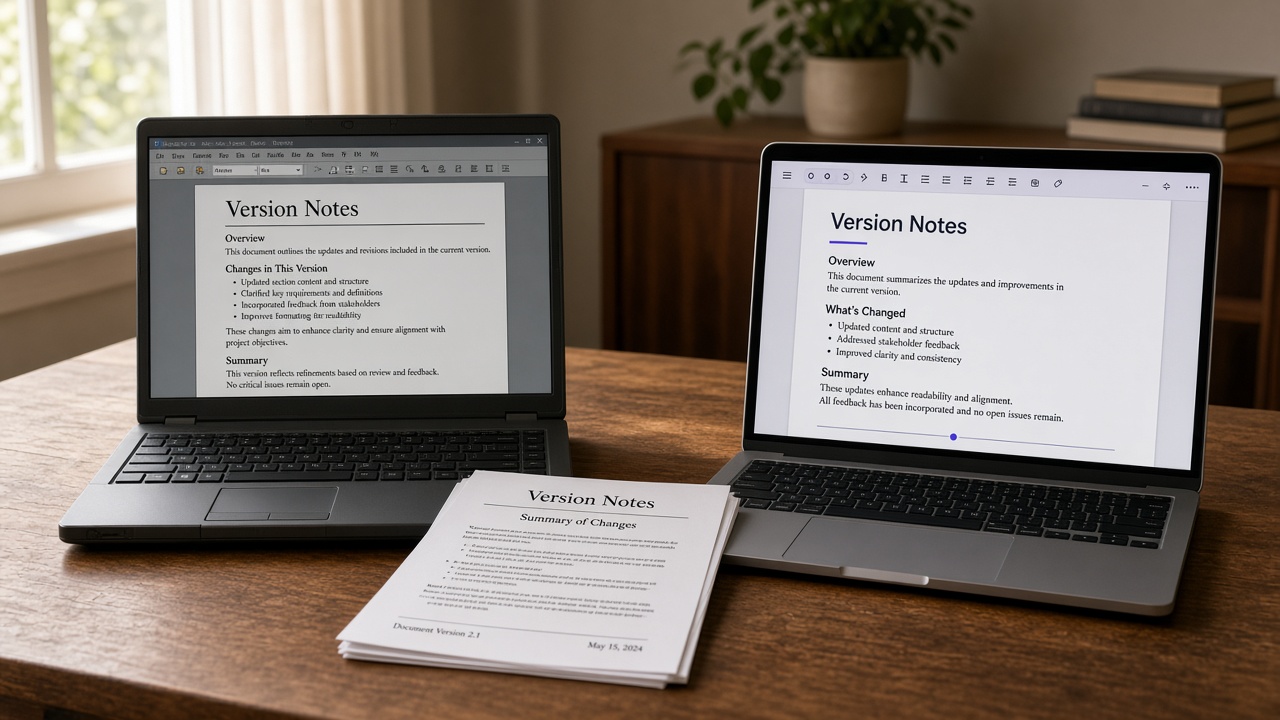
Two laptops side by side: an older document interface on the left and a modern one on the right
The look has changed a lot, but for real work the closed security holes and your file compatibility matter more than new buttons.
  1. 3.x–4.x

    Finding its feet after the split

    The independent project took shape, document filters improved, and basic stability landed on the three desktop systems.

  2. 6.x–7.x

    Mature compatibility

    OOXML import, PDF, visual layout, and large spreadsheets got noticeably better. These branches no longer receive current security patches.

  3. Still

    The calm line

    Chosen by organizations and anyone who values predictability over new buttons. Fixes arrive later, but workflows break less often.

  4. Fresh 24.x–25.x

    Calendar releases

    Year-based numbering, newer features, and faster cycles. Fine at home and for enthusiasts; for policy, only after you test your templates.

Comparison

Support and terms compared

Not “who looks nicer,” but who is accountable when something fails and under which rules the license lives. Vendor prices change, so this table is about the logic of the choice.

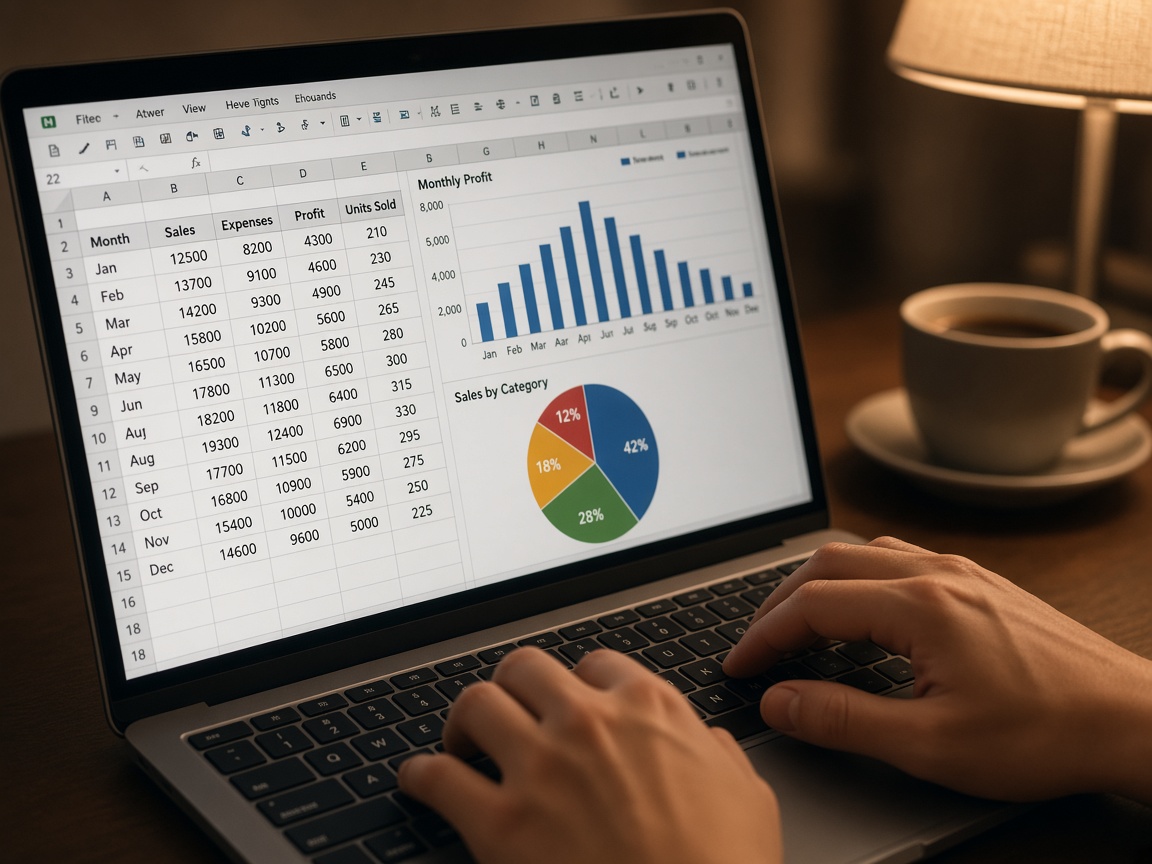
Working with a spreadsheet and charts on a laptop A meeting with a presentation on screen and laptops on the table
LibreOffice compared with similar office suites on license, support, and working terms
SuiteLicenseSupportWorking terms
LibreOfficeMPL and related free licenses, no per-seat feeCommunity, documentation, independent integratorsOffline; ODF as native format; OOXML through import
Microsoft 365Subscription or enterprise contractOfficial vendor line and SLA on paid plansTight OOXML and cloud tie-in; depends on a subscription
OnlyOfficeFree edition and commercial server licensesVendor for paid deployments, community for the free editionEmphasis on co-editing and Word/Excel files
WPS OfficeFree build plus paid editionsVendor; terms depend on region and planFamiliar interface; the free version often has limits
Google DocsFree consumer access and paid Workspace seatsGoogle support under the account and Workspace planConvenient in the browser; weaker offline and in complex print layout
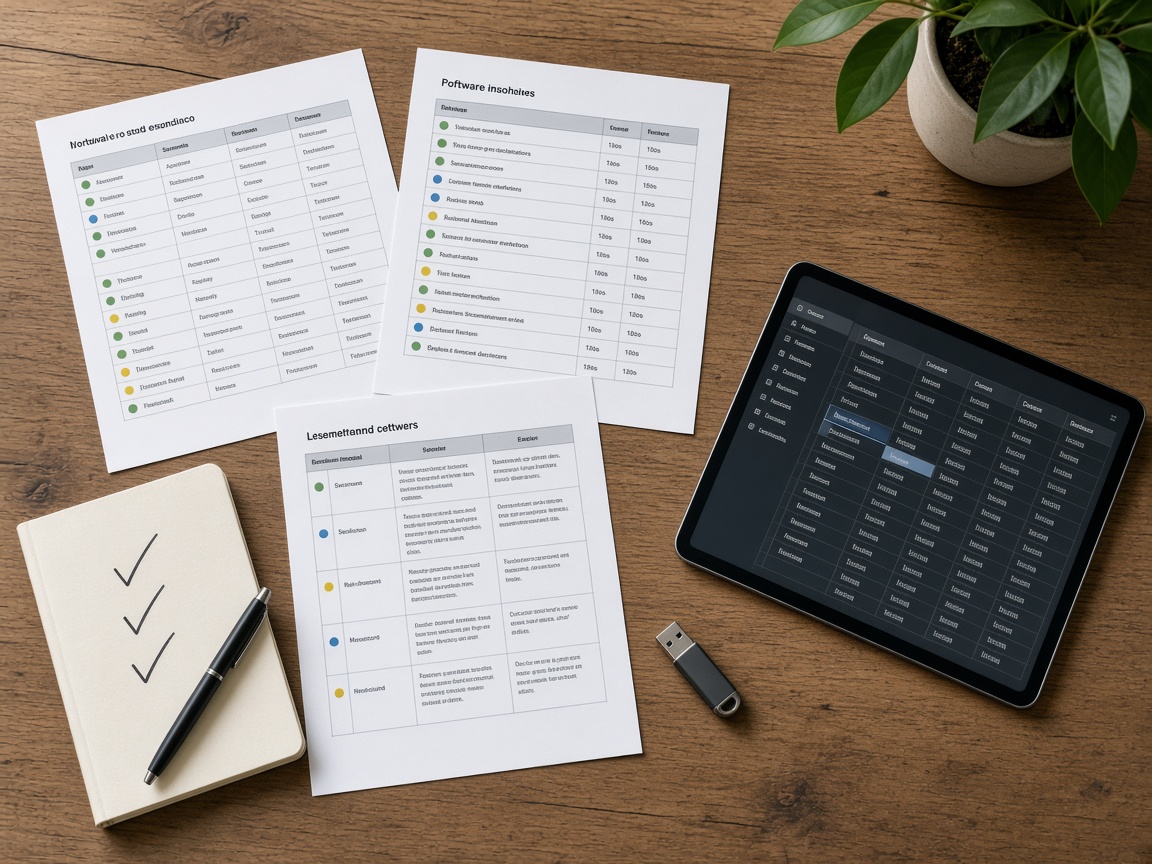
Overhead view of a table with printed software comparison sheets, a tablet, and a notebook
The author’s comparison guides unpack tables like this against your own workflows. You can request one through the contact form.

Download

How and where to download safely

There are no direct links to official sites or mirrors here — that is by design. We do not host installers and we do not earn money from a “download” button.

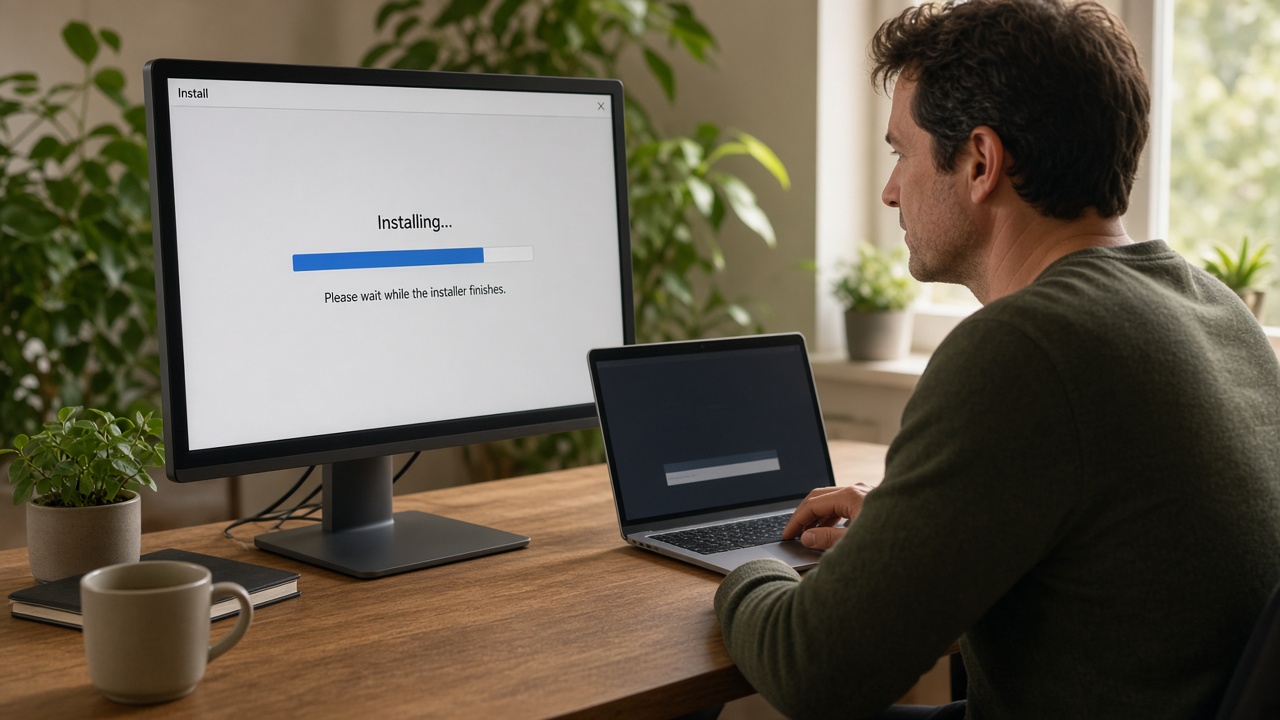
A home computer during a software install, with no advertising banners on the screen

1. Do not download from banners

“Download fast” ads, helper installers, and forum archives are a common path to a swapped file.

2. Use your system’s own channel

A Linux repository, the Windows store under publisher The Document Foundation, or a signed image / package manager on macOS.

3. Check the signature and checksum

The digital signature and checksum must match the project publisher. If they do not, do not run the file.

4. Pin a branch

For workstations, Still is the safer choice. Fresh makes sense if you are deliberately testing new features on file copies.

Need a review of your files, not a general note?

Paid guides with reviews and comparisons of similar suites are ordered through the form: you describe the task, the author replies with scope and price.

Open the form